New: ready-to-use spreadsheet templatesExplore the collection  →
FREE TEMPLATEGOOGLE SHEETSINTERMEDIATE

Free Google Sheets Annual Budget Planner Template

See twelve months of income, spending and savings without maintaining twelve separate files.

Reviewed by SheetStepsFresh-copy tested · July 26, 2026
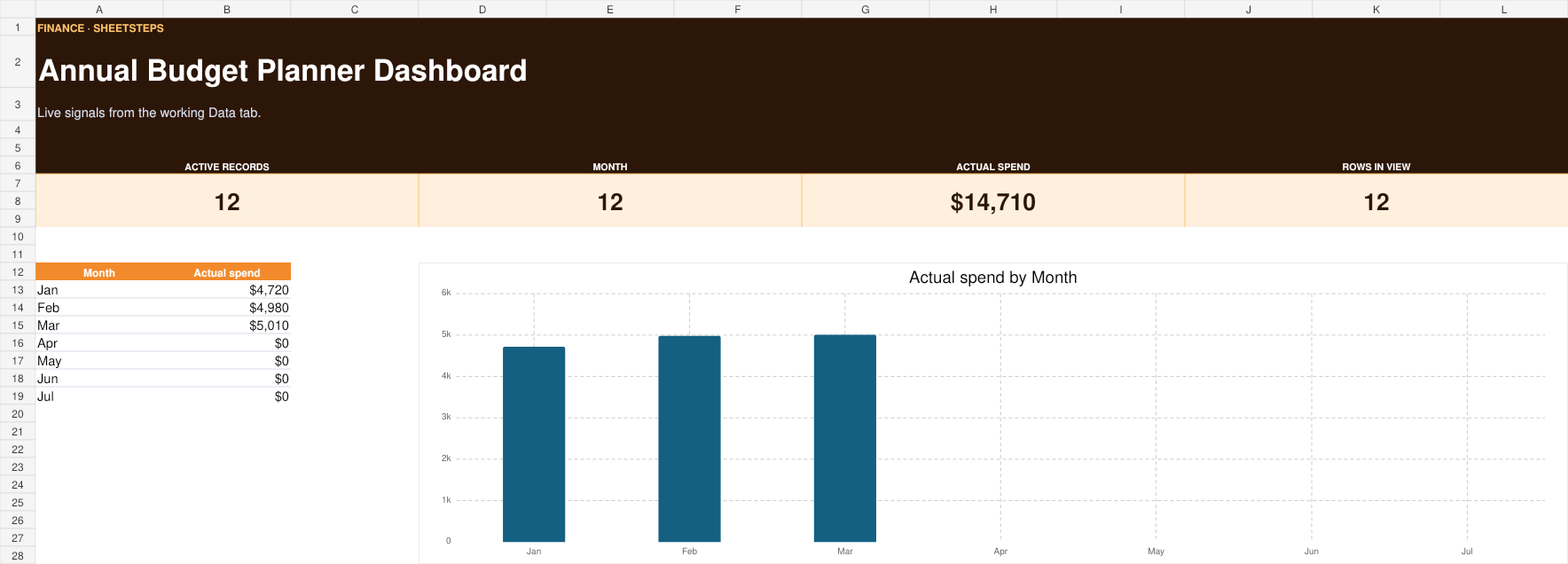
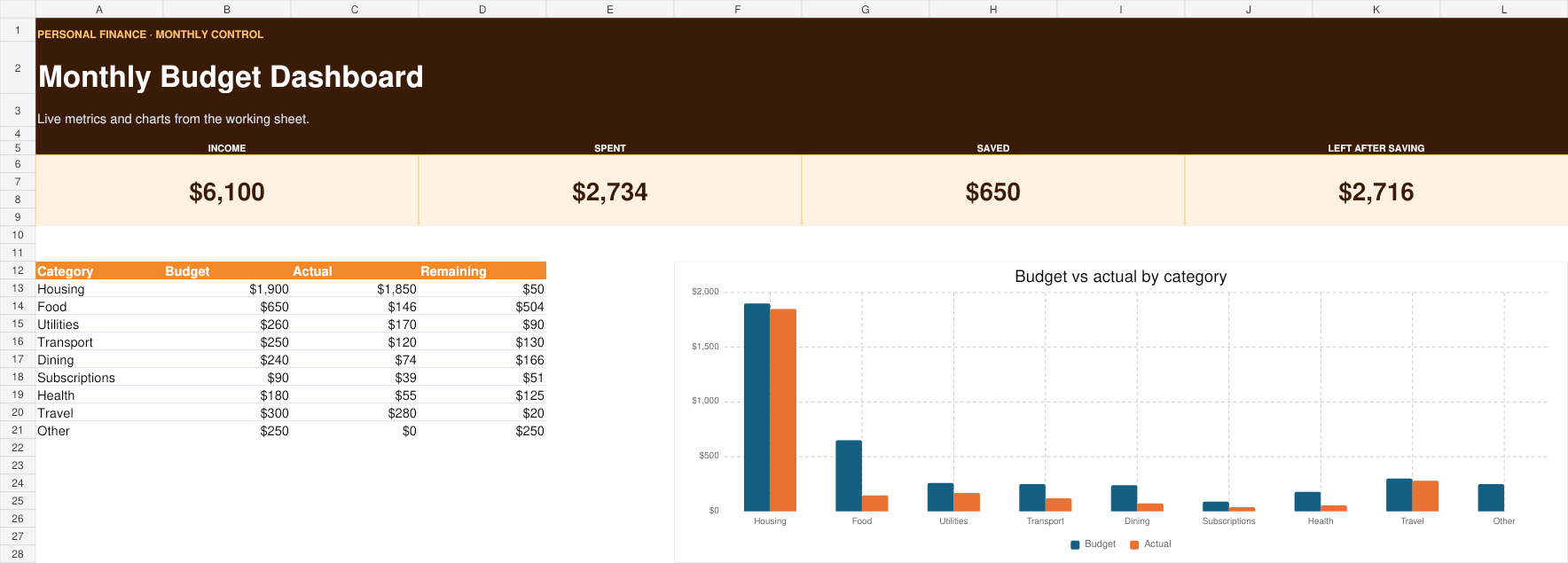
Annual Budget Planner dashboard previewLIVE WORKBOOK PREVIEW
Built to be editedExample data and setup notes included
01 · INSIDE THE FILE

Everything you need.
Nothing you don’t.

See twelve months of income, spending and savings without maintaining twelve separate files. Start with realistic example data, replace it with your own, and use the connected SheetSteps guide whenever you want to change the workflow.

  • 12-month planning grid
  • Year-to-date dashboard
  • Category assumptions
  • Monthly variance tracking
YOUR WORKING SHEET
AMonthINPUTBIncomeINPUTCFixed costsCALCULATEDDVariable costsCALCULATEDESavingsSTATUS
WHO IT IS FOR

A practical fit for
households.

01Households

Use the example workflow as-is, then rename fields and views around the way you already work.

02Freelancers

Use the example workflow as-is, then rename fields and views around the way you already work.

03Small businesses

Use the example workflow as-is, then rename fields and views around the way you already work.

SETUP GUIDE

From copy to useful
in a few clear steps.

  1. 01
    Make your own copyOpen the view-only master and choose Make a copy in Google Sheets.
  2. 02
    Read Start HereCheck the color legend, editable fields and sample workflow before replacing data.
  3. 03
    Replace the examplesSwap the sample rows for your own records without changing formula columns.
  4. 04
    Tune the settingsRename statuses, categories, owners and assumptions to match your workflow.
  5. 05
    Use the dashboardWatch totals, alerts and charts update as your working data changes.
Annual Budget Planner dashboard previewLIVE WORKBOOK PREVIEW
Interactive setup guide · 5 steps
CONNECTED SETUP GUIDE

See the setup.
Then make it yours.

How to set up and customize a annual budget planner in Google Sheets. Learn which fields are safe to change, how the calculations update, and what to check if a result looks wrong.

Open the setup guide
BUILT FOR REAL WORK

A annual budget planner
that is ready to use.

What this Google Sheets template does

See twelve months of income, spending and savings without maintaining twelve separate files. Unlike a blank spreadsheet or a decorative download, this template includes realistic example data, clearly marked inputs, live calculations, and a dashboard designed around the decisions people actually make.

Why use it in Google Sheets?

Make a private copy in your own Google Drive, collaborate with the people you choose, and customize the workflow without installing an add-on. The master remains view-only, while your copied spreadsheet belongs to you.

What you can customize

Rename categories, owners, statuses, and assumptions from the Settings tab. Add new rows inside the working table, adjust dropdown choices, and follow the connected SheetSteps formula guides when you want to extend the dashboard.

Who this template is best for

This finance template is designed for households, freelancers, small businesses. It is especially useful when you need a practical system now but still want to understand and control how the spreadsheet works.
FORMULAS USED

Understand what
powers the template.

01SUMSee the syntax, worked example and common mistakes.Learn how it works ↗02SUMIFSee the syntax, worked example and common mistakes.Learn how it works ↗03IFERRORSee the syntax, worked example and common mistakes.Learn how it works ↗
MAKE IT YOURS

Useful ways to
take it further.

01

Add quarterly targets

Follow the connected tutorial and adjust the working sheet without rebuilding the template.

Show me how →
02

Model a second income

Follow the connected tutorial and adjust the working sheet without rebuilding the template.

Show me how →
03

Create a best-case plan

Follow the connected tutorial and adjust the working sheet without rebuilding the template.

Show me how →
QUESTIONS, ANSWERED

Before you
make a copy.

Is this template free?

Yes. Every Phase 1 SheetSteps template is free to copy and customize.

Does SheetSteps see my copied spreadsheet?

No. Your copy is saved to your Google Drive. SheetSteps does not receive access to it.

Can I remove the example data?

Yes. The examples are there to show the workflow. Replace or remove them after reading Start Here.

Can I customize dropdowns and colors?

Yes. The Settings tab contains editable options, and the connected tutorial shows the safe way to change them.

Can I share it with my team?

Yes. Once copied, the file is yours to share using normal Google Sheets permissions.

What if I delete a formula?

Use the protected master as a reference or follow the restoration steps in the tutorial.

QUICK CHECK

Was this template useful?