How to import public API data with SheetSteps AI
Turn JSON responses into stable columns, handle pagination and errors, and avoid exposing API credentials in cells.
 Written by PhilisPublished July 24, 2026Last updated July 28, 20269 min
Define the fields you need, call the API from a protected integration or Apps Script, validate the JSON response, flatten only the required properties and write one record per row. Never place reusable secrets in public cells or logs.
The useful version of this workflow is not a fragile formula that appears to work once. It is a repeatable process with explicit inputs, a known output schema and a visible status for every URL.
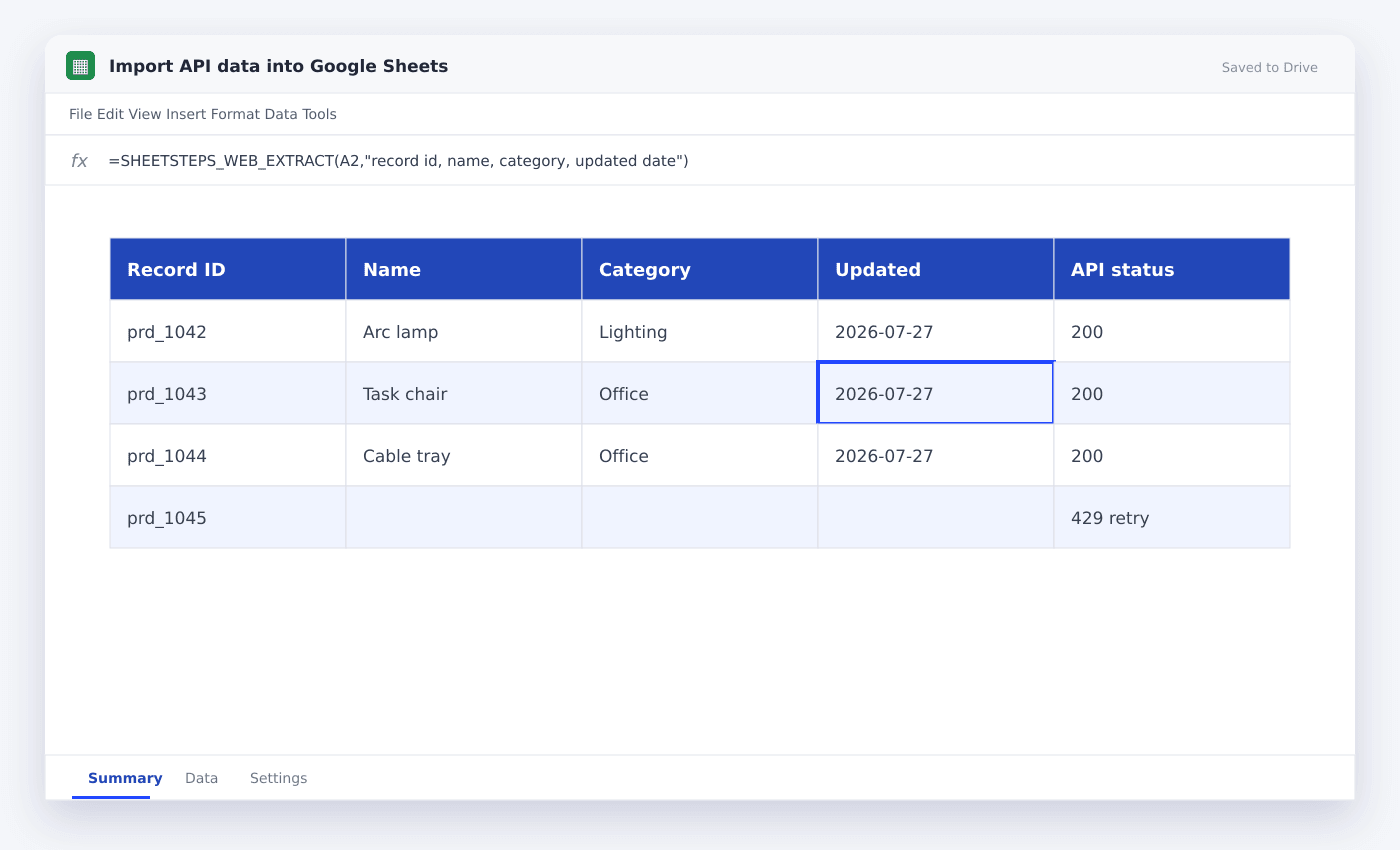
This guide shows how to turn a JSON API response into spreadsheet rows. It uses the actual SheetSteps AI flow: preview first, hosted extraction, a queued batch when the range is large, and confirmed write-back into Google Sheets.
WHEN NEEDED
How to import public API data with SheetSteps AI
- 01Read the endpoint contract
Identify authentication, pagination, rate limits and the exact JSON path containing records.
- 02Define the row schema
Choose stable IDs and the small set of properties that belong in columns.
- 03Handle status codes
Record 401, 403, 429 and server errors instead of treating every failure as an empty response.
- 04Inspect the preview
Check the proposed columns, sample entries, extraction mode and destination before starting the job.
- 05Run and monitor the job
Use the Jobs view to follow progress, pause or cancel the run, and inspect row-level failures.
- 06Confirm write-back
Review the destination range and approve the write. Existing populated cells are not silently overwritten.
Map JSON to a deliberate spreadsheet schema
Nested API responses rarely belong in one cell. Choose a record array, preserve its stable ID and flatten only fields that users will filter, join or calculate.
Use null or blank consistently for missing entries. A stable schema makes refresh jobs and downstream formulas predictable.
Paginate without duplicating rows
Follow the API’s cursor or page token until it ends. Store the stable record ID and upsert by that ID rather than appending every response blindly.
Use idempotency for each page and record so a retry after a timeout cannot duplicate completed rows.
Keep API credentials out of spreadsheet cells
Cells are easy to share, copy and expose through formulas or screenshots. Store provider credentials encrypted, mask them in settings and never write them to logs.
SheetSteps provider connections are testable and deletable. Scraping usage and AI execution mode remain separate so users can understand which service handled each step.
- Encrypt reusable credentials
- Mask settings entries
- Never log secrets
- Validate response schema
- Respect 429 retry guidance
Questions people ask
Can Google Sheets import JSON natively?+
There is no general built-in IMPORTJSON function. Use Apps Script, an add-on or a protected backend integration.
How do I prevent duplicate API rows?+
Keep the API’s stable record ID and update or upsert by that ID instead of blindly appending.
Where should an API credential be stored?+
Use encrypted application settings or an appropriate secret store, not an ordinary spreadsheet cell.
More from SheetSteps

How to scrape a website into Google Sheets
12 min · Web Scraping

How to use IMPORTXML in Google Sheets
10 min · Web Scraping

IMPORTHTML in Google Sheets: import tables and lists from a page
8 min · Web Scraping