How to scrape a website into Google Sheets
Extract organized page data into rows, handle multiple URLs and know when IMPORTXML is enough—or when a browser-backed scraper is needed.
 Written by JosephinePublished July 15, 2026Last updated July 27, 202612 min
For simple public HTML, IMPORTXML can extract a title, price or element using XPath. For multiple URLs, JavaScript-rendered pages, pagination or reliable scheduled refreshes, use a scraper that fetches pages outside the spreadsheet and writes organized results back in batches.
Google Sheets is an excellent destination for web data because the result is immediately filterable, shareable and ready for formulas. The hard part is not the grid—it is fetching pages reliably and extracting the right field.
Start by checking whether the information exists in the page’s original HTML. If it appears only after scripts run, IMPORTXML will often return blank even though you can see the entry in your browser.
WHEN NEEDED
How to scrape a website into Google Sheets
- 01Define the output columns
Write the URL, title, price, availability, date or other exact fields you need.
- 02Test one public page
Confirm the page loads without login and the field exists in the original HTML.
- 03Inspect the element
Use browser developer tools to identify a stable tag, class, attribute or organized-data field.
- 04Try the simplest method
Use IMPORTXML for static HTML or a organized scraper for repeated and rendered pages.
- 05Run a small URL batch
Test varied pages, missing fields, redirects and unavailable products before scaling.
- 06Normalize the entries
Keep raw text, parsed number and scrape status in separate columns.
- 07Respect rate limits
Use controlled concurrency, caching and backoff rather than recalculating every row at once.
Use IMPORTXML for simple public HTML
IMPORTXML accepts a URL and an XPath query. It works well for pages where the desired entry is present in the server-rendered HTML and the site does not block automated requests.
An XPath based on a valid attribute is usually more stable than a long chain of nested div positions.
=IMPORTXML(A2,"//h1")Know why spreadsheet scraping fails
JavaScript-rendered content, login walls, bot protection and request limits are common reasons. A correct XPath cannot extract content that is absent from the HTML response Sheets receives.
Repeated volatile formulas can also trigger loading errors. Hundreds of IMPORTXML calls are not a dependable production crawler.
Use a controlled scraping pipeline for scale
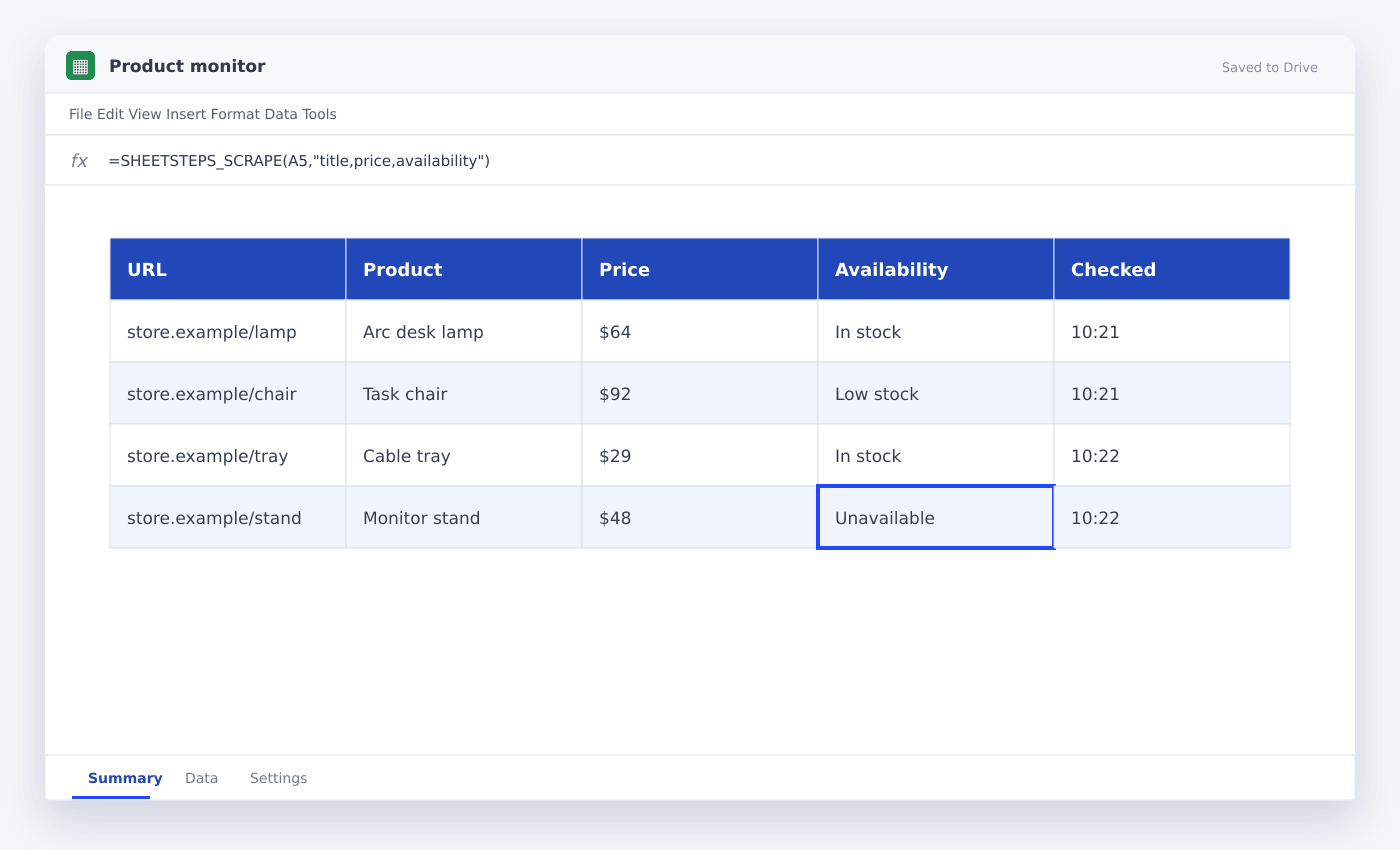
A dependable workflow accepts a URL column, fetches pages with timeouts and safe concurrency, extracts a defined schema, caches unchanged pages and writes results back in batches.
Keep a status column with success, blocked, not found and parse error. That turns failures into a queue you can retry instead of silent blanks.
- Bounded concurrency
- Per-domain rate limits
- Cache and deduplication
- Defined field list
- Browser or scraping-API fallback
- Batch writeback to Sheets
Questions people ask
Is it legal to scrape websites into Google Sheets?+
It depends on the site, jurisdiction, data and use. Follow applicable law, robots guidance, contractual terms and privacy requirements; do not bypass access controls.
Why does IMPORTXML say imported content is empty?+
The content may be JavaScript-rendered, blocked, absent from the returned HTML or targeted by an incorrect XPath.
Can I scrape multiple URLs?+
Yes, but avoid hundreds of volatile formulas. Use a controlled batch scraper with caching and writeback for reliable scale.
More from SheetSteps

How to use IMPORTRANGE in Google Sheets
9 min · AI & automation

How to use AI in Google Sheets for real work
11 min · AI & automation

Google Sheets formula not working? Check these seven things
10 min · Formulas