How to extract JSON page data with SheetSteps AI
Choose the correct record array, flatten nested objects and expand repeatable data into rows that formulas can use.
 Written by JosephinePublished July 25, 2026Last updated July 28, 202610 min
Locate the JSON array that represents records, select stable fields for columns, flatten simple nested properties and place repeated child items in a separate table. Validate the format before writing so an API edit does not silently shift data into the wrong columns.
The useful version of this workflow is not a fragile formula that appears to work once. It is a repeatable process with explicit inputs, a known output schema and a visible status for every URL.
This guide shows how to flatten JSON into a clean row-and-column table. It uses the actual SheetSteps AI flow: preview first, hosted extraction, a queued batch when the range is large, and confirmed write-back into Google Sheets.
WHEN NEEDED
How to extract JSON page data with SheetSteps AI
- 01Find the record array
Identify the repeated objects that should become spreadsheet rows.
- 02Choose stable columns
Keep IDs, names, dates and metrics; avoid dumping every nested property.
- 03Validate before write-back
Reject or flag responses whose expected paths or types changed.
- 04Inspect the preview
Check the proposed columns, sample entries, extraction mode and destination before starting the job.
- 05Run and monitor the job
Use the Jobs view to follow progress, pause or cancel the run, and inspect row-level failures.
- 06Confirm write-back
Review the destination range and approve the write. Existing populated cells are not silently overwritten.
Start with the JSON format, not the visual result
Objects represent named properties, arrays represent repeated items and primitives become cell entries. The record array is the level where one item should become one row.
If an order contains multiple line items, use an Orders table and a Line Items table joined by order ID rather than compressing every item into one cell.
Flatten only the properties you will use
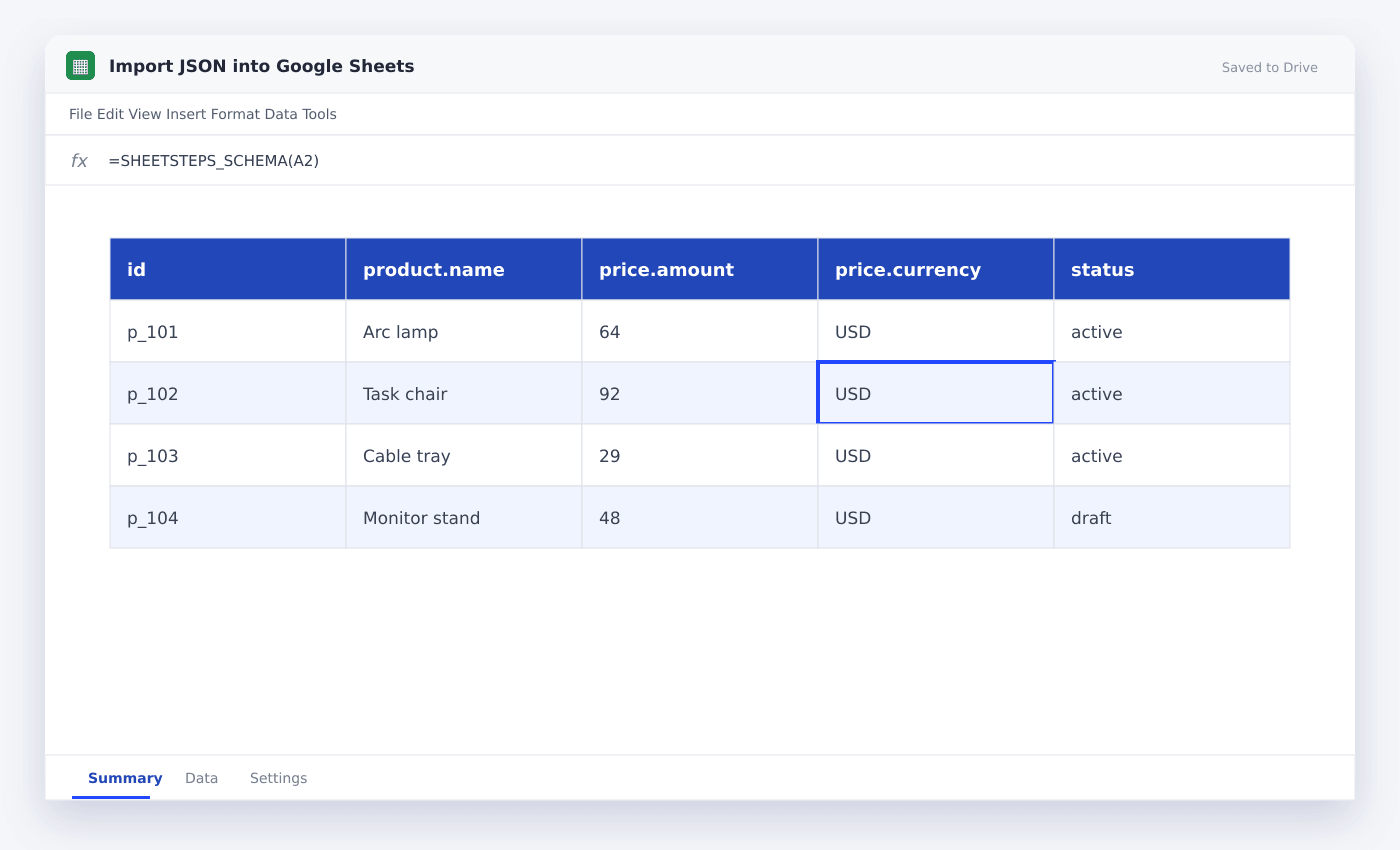
A path for example price.amount can become one numeric column while price.currency becomes another. Keep dates in ISO format until the sheet applies display formatting.
For organized AI extraction after scraping, require a JSON schema and validate it before any cells are edited.
Detect response-format edits
APIs and embedded page data can edit. Record a parse error when a required path disappears instead of shifting unrelated entries into its column.
Previewing SheetSteps output lets the user inspect proposed fields and sample rows before creating a batch job.
- Stable record ID
- One type per column
- Separate child tables
- Schema validation
- Preview before write-back
Questions people ask
Can one JSON object become one row?+
Yes, when its selected primitive properties map cleanly to columns.
What should I do with nested arrays?+
Usually place them in a separate sheet with the parent record ID as a join credential.
Why validate JSON before writing it?+
Validation prevents missing or changed properties from silently filling the wrong spreadsheet columns.
More from SheetSteps

How to scrape a website into Google Sheets
12 min · Web Scraping

How to use IMPORTXML in Google Sheets
10 min · Web Scraping

IMPORTHTML in Google Sheets: import tables and lists from a page
8 min · Web Scraping