IMPORTHTML not working? Use SheetSteps AI to extract the page instead
Diagnose the formula error, then extract the same page with SheetSteps AI when Google cannot read the table or the page needs JavaScript.
 Written by PhilisPublished July 20, 2026Last updated July 28, 20269 min
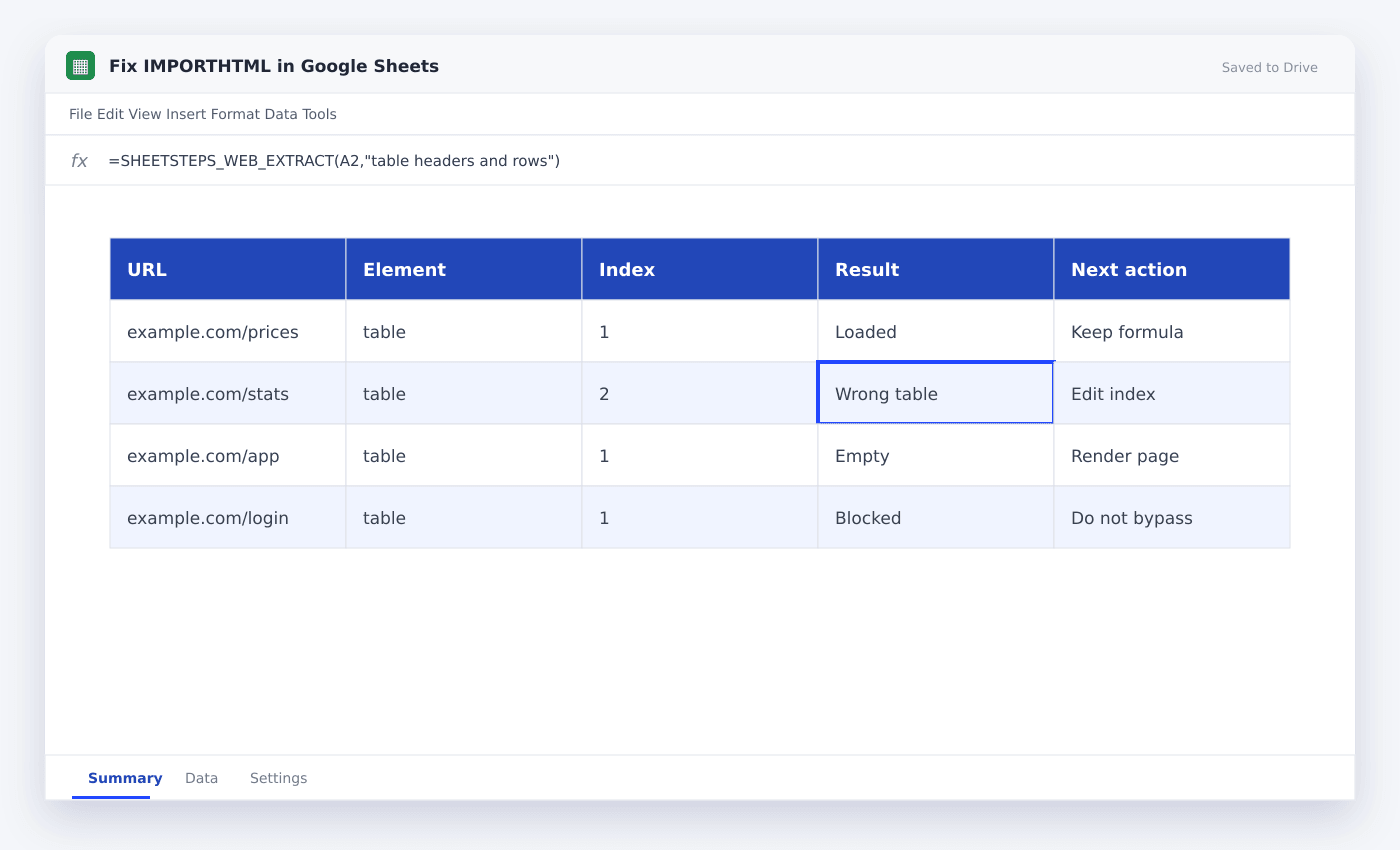
Check that the URL is public, the source HTML contains a real table or list, and the index points to the intended element. IMPORTHTML cannot reliably read content created after page load. When the source is rendered with JavaScript or blocks Google, use a hosted extractor with browser-rendering fallback instead of repeatedly recalculating the formula.
The useful version of this workflow is not a fragile formula that appears to work once. It is a repeatable process with explicit inputs, a known output schema and a visible status for every URL.
This guide shows how to repair an IMPORTHTML import without guessing. It uses the actual SheetSteps AI flow: preview first, hosted extraction, a queued batch when the range is large, and confirmed write-back into Google Sheets.
WHEN NEEDED
IMPORTHTML not working? Use SheetSteps AI to extract the page instead
- 01Open the URL privately
Confirm the page works without an account, cookie prompt or local session.
- 02View the returned source
Look for an actual table or list in page source, rather than only in the browser inspector.
- 03Test nearby indexes
Try table indexes 1, 2 and 3 on one page before changing anything else.
- 04Inspect the preview
Check the proposed columns, sample entries, extraction mode and destination before starting the job.
- 05Run and monitor the job
Use the Jobs view to follow progress, pause or cancel the run, and inspect row-level failures.
- 06Confirm write-back
Review the destination range and approve the write. Existing populated cells are not silently overwritten.
Why imported content is empty
IMPORTHTML reads the HTML response available to Google Sheets. If a site builds its table in the browser after JavaScript runs, the visible rows may not exist in that response.
A selector cannot recover content that was never returned. SheetSteps first tries a fast hosted fetch and can use its smart rendering fallback for pages that genuinely require a browser.
Find the correct table or list index
The index counts matching tables or lists in source order. Navigation, comparison and unseen tables can appear before the element you want.
Edit only the index while testing. Once the right element loads, keep the URL, element type and index in separate cells so the formula remains auditable.
=IMPORTHTML(A2,"table",B2)Know when to stop retrying the formula
Repeated recalculation does not fix authentication, bot protection or client-rendered data. It can make a workbook slower and trigger more loading failures.
For a URL list, preview a organized SheetSteps extraction, inspect the proposed columns, then run the job through the hosted queue. Failed rows remain visible and retryable instead of becoming unexplained blank cells.
- Static page → IMPORTHTML may be enough
- JavaScript page → use smart rendering fallback
- Many URLs → use a queued batch
- Login or access control → do not bypass
Questions people ask
Why does IMPORTHTML show the wrong table?+
Its index points to another table in the source. Increase or decrease the index and verify the headers before filling the formula down.
Can IMPORTHTML scrape JavaScript pages?+
Usually not reliably. It reads returned HTML and may miss content created after scripts run.
Should I use one IMPORTHTML formula per URL?+
A few imports can work. For a large URL list, a controlled batch with caching, progress and row-level retries is safer.
More from SheetSteps

How to scrape a website into Google Sheets
12 min · Web Scraping

How to use IMPORTXML in Google Sheets
10 min · Web Scraping

IMPORTHTML in Google Sheets: import tables and lists from a page
8 min · Web Scraping