How to refresh web data with a SheetSteps AI batch
Replace volatile formula churn with deliberate refresh jobs, cached results, timestamps and clear edit tracking.
 Written by PhilisPublished July 22, 2026Last updated July 28, 202611 min
For a few static imports, recalculate the source formula deliberately. For a monitored URL list, rerun a confirmed SheetSteps batch and write a checked-at timestamp beside each result. The current core release includes controlled refresh jobs, not unattended scheduled workflows.
The useful version of this workflow is not a fragile formula that appears to work once. It is a repeatable process with explicit inputs, a known output schema and a visible status for every URL.
This guide shows how to refresh website data without losing the previous entry. It uses the actual SheetSteps AI flow: preview first, hosted extraction, a queued batch when the range is large, and confirmed write-back into Google Sheets.
WHEN NEEDED
How to refresh web data with a SheetSteps AI batch
- 01Preserve the comparison entry
Copy the last approved result into a previous-entry column or history tab.
- 02Rerun the saved workflow
Open the recipe, preview the current URL range and confirm the output destination.
- 03Review changed and failed rows
Filter by edit and status before accepting the refreshed data.
- 04Inspect the preview
Check the proposed columns, sample entries, extraction mode and destination before starting the job.
- 05Run and monitor the job
Use the Jobs view to follow progress, pause or cancel the run, and inspect row-level failures.
- 06Confirm write-back
Review the destination range and approve the write. Existing populated cells are not silently overwritten.
Why formula refreshes become unreliable
IMPORTXML and IMPORTHTML refresh on Google’s timing and may stay cached. Tricks that append volatile entries can multiply requests without guaranteeing fresh content.
For business-necessary checks, use an explicit job with a visible checked time and status rather than assuming every cell refreshed together.
Keep a history instead of replacing evidence
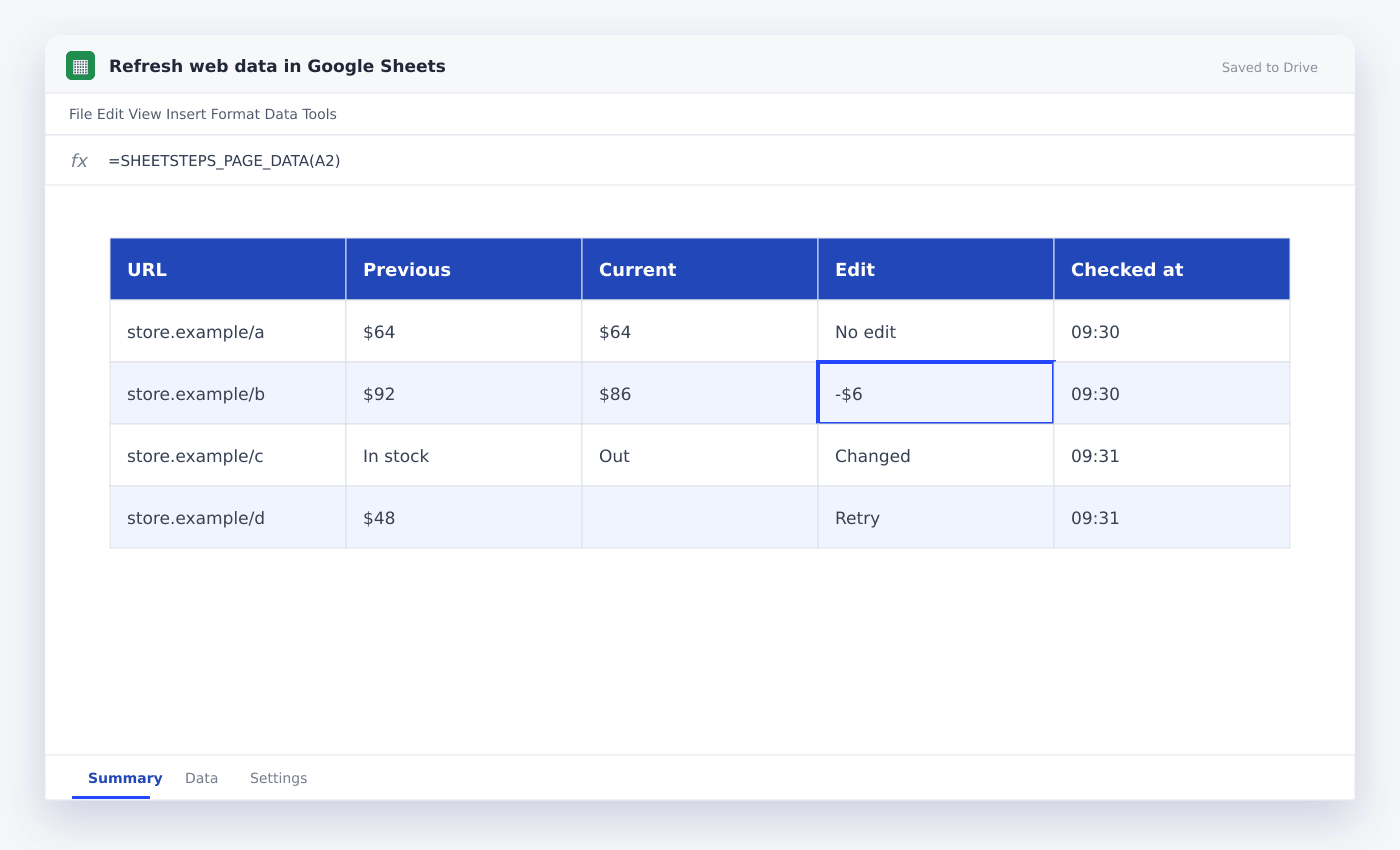
A price or stock status is useful only with a timestamp. Keep previous and current entries or append approved snapshots to a history tab.
SheetSteps previews write-back and requires confirmation before replacing populated cells. That makes accidental loss less likely.
Controlled refreshes in the current release
The initial SheetSteps AI release includes jobs you start and monitor. Unattended scheduled workflows are intentionally outside the core milestone.
Design the sheet now with status and timestamp columns so scheduled execution can be added later without changing the data model.
- Checked-at timestamp
- Previous entry
- Current entry
- Edit flag
- Job status
Questions people ask
Does IMPORTXML update automatically?+
It can refresh, but timing and caching are controlled by Google and are not suitable for guaranteed monitoring.
Can SheetSteps schedule scraping unattended?+
Not in the current core release. It includes controlled jobs with previews, progress, retries, pause and cancellation.
How do I know which rows changed?+
Keep previous and current columns and calculate a edit flag after the new batch completes.
More from SheetSteps

How to scrape a website into Google Sheets
12 min · Web Scraping

How to use IMPORTXML in Google Sheets
10 min · Web Scraping

IMPORTHTML in Google Sheets: import tables and lists from a page
8 min · Web Scraping