How to scrape multiple URLs with SheetSteps AI
Turn a URL column into organized results with previews, controlled batches, cached fetches, progress states and retryable failures.
 Written by JosephinePublished July 21, 2026Last updated July 28, 202610 min
Put one public URL on each row, define the exact output columns, preview a small sample, and submit the range as a queued batch. SheetSteps fetches pages through hosted infrastructure, uses static extraction first, applies browser rendering only when needed, caches duplicate work and writes results back only after confirmation.
The useful version of this workflow is not a fragile formula that appears to work once. It is a repeatable process with explicit inputs, a known output schema and a visible status for every URL.
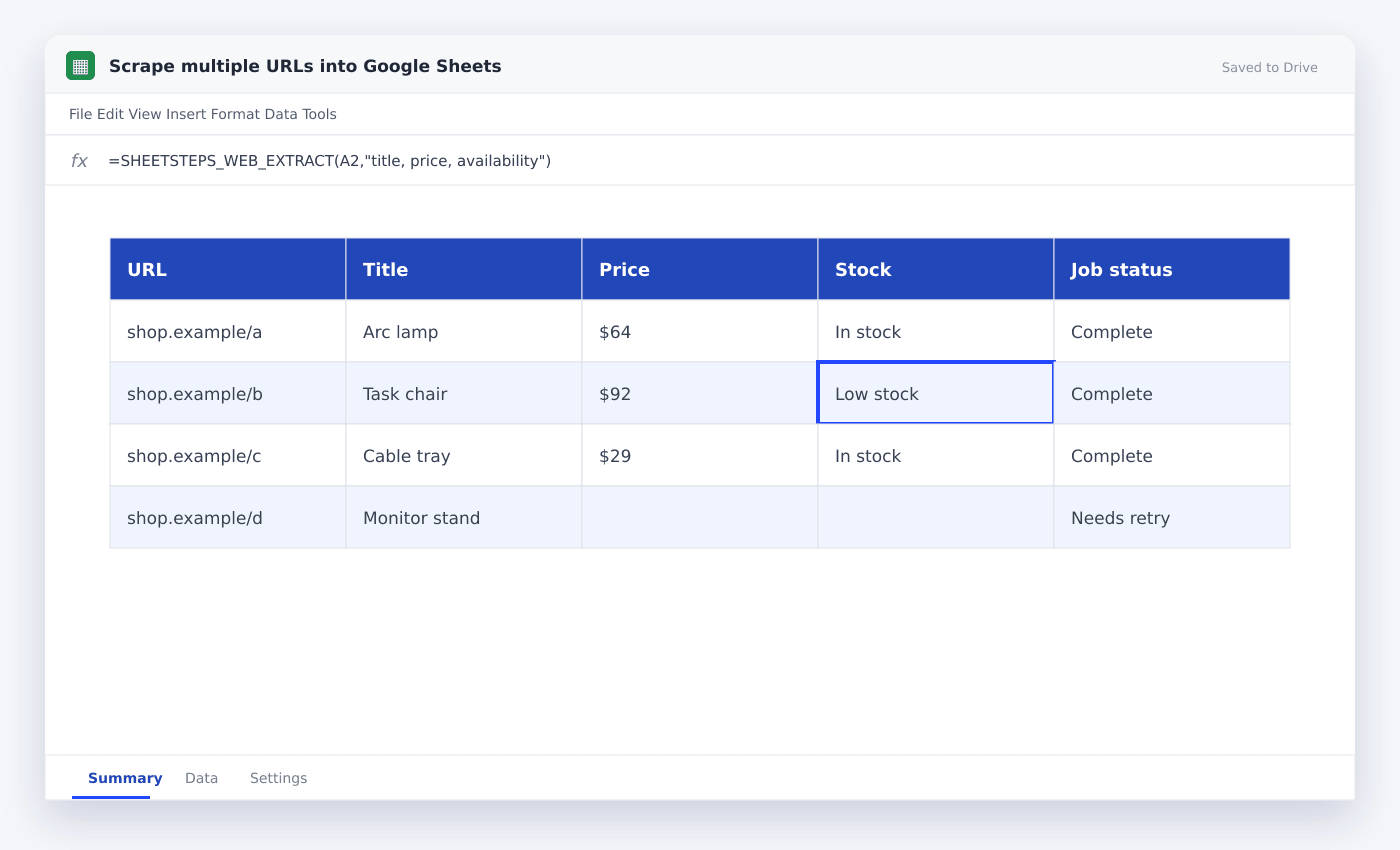
This guide shows how to extract the same fields from a list of URLs. It uses the actual SheetSteps AI flow: preview first, hosted extraction, a queued batch when the range is large, and confirmed write-back into Google Sheets.
WHEN NEEDED
How to scrape multiple URLs with SheetSteps AI
- 01Select the URL range
Use one clean URL per row and keep any record ID in the adjacent column.
- 02Describe the output schema
Name exact columns for example title, price, availability and canonical URL.
- 03Preview before running
Inspect sample output and the destination range before creating the batch job.
- 04Inspect the preview
Check the proposed columns, sample entries, extraction mode and destination before starting the job.
- 05Run and monitor the job
Use the Jobs view to follow progress, pause or cancel the run, and inspect row-level failures.
- 06Confirm write-back
Review the destination range and approve the write. Existing populated cells are not silently overwritten.
Define columns before fetching pages
A batch is reliable when every row targets for the same schema. Use narrow field names and say whether a missing entry should be blank or null.
Keep raw page text out of the main result when you only need a few fields. Smaller organized outputs are easier to review, cache and write back.
Use a queue instead of synchronous formulas
Large jobs should not run inside a single Apps Script request. SheetSteps creates an asynchronous job, tracks each row and reports progress in the Jobs view.
Rows are idempotent, so retrying a failed page does not duplicate a completed result. Pause and cancellation remain available while the job is active.
Confirm the destination before write-back
The preview shows the proposed columns and target range. SheetSteps does not overwrite populated cells without explicit confirmation.
Keep URL, extraction status and checked time beside the extracted fields. Those columns make refreshes and failures easy to audit.
- Preview required
- No silent overwrites
- Row-level status
- Retry failed rows
- Cached duplicate requests
Questions people ask
How many URLs should I test first?+
Use a small varied sample first, including one missing field and one difficult page. Scale only after the output schema is stable.
Does SheetSteps open JavaScript pages?+
It uses static extraction first and a hosted browser-rendering fallback when the page requires it and the job is allowed to use it.
Can I retry only failed rows?+
Yes. Jobs keep row-level status so failed rows can be retried without rerunning completed work.
More from SheetSteps

How to scrape a website into Google Sheets
12 min · Web Scraping

How to use IMPORTXML in Google Sheets
10 min · Web Scraping

IMPORTHTML in Google Sheets: import tables and lists from a page
8 min · Web Scraping