SHEETSTEPS_DESCRIPTION: extract meta descriptions into Google Sheets
Pull meta descriptions from public URLs and flag missing or duplicate entries.
 Written by JosephinePublished July 14, 2026Last updated July 28, 202610 min
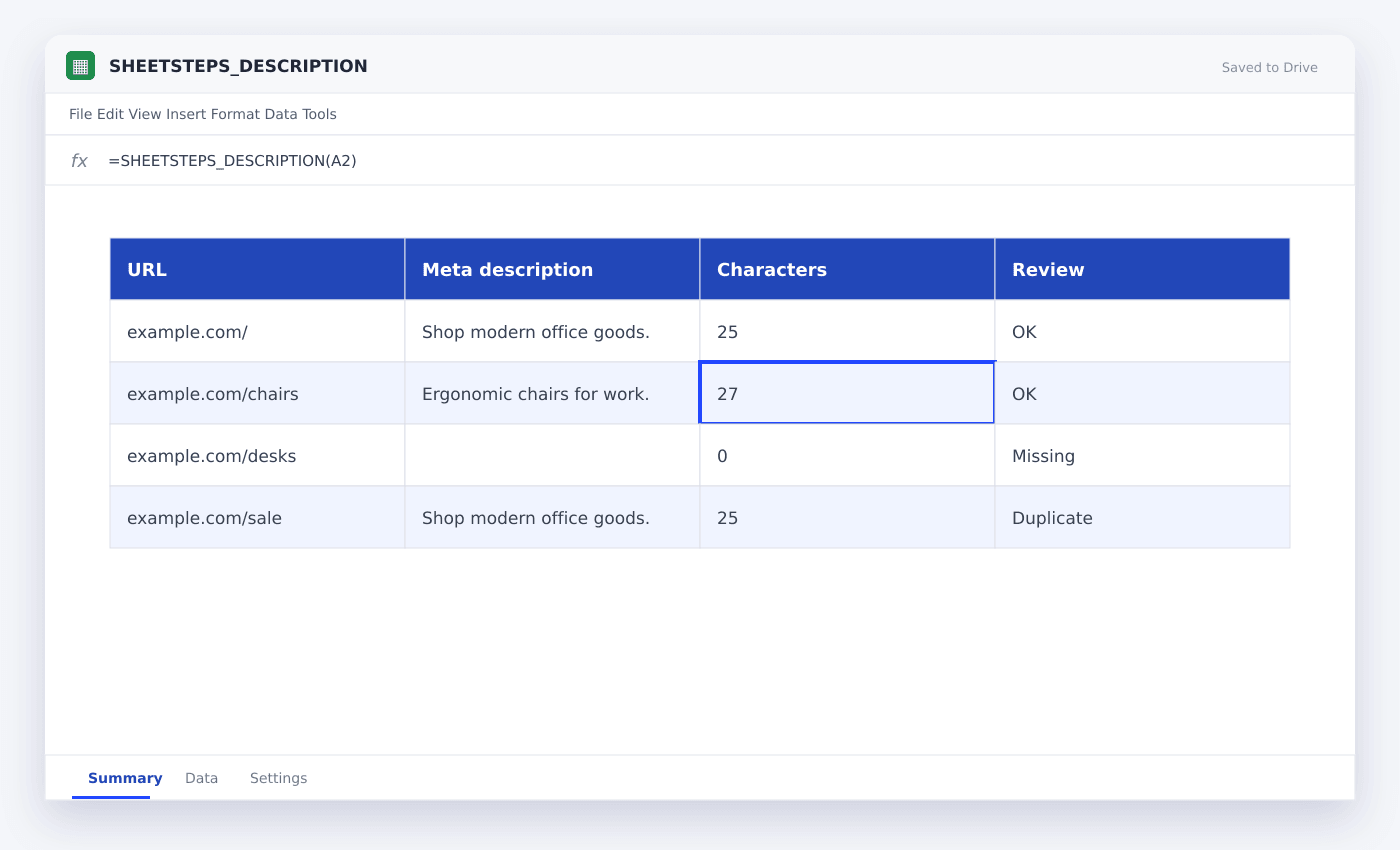
Put a public URL in A2 and enter =SHEETSTEPS_DESCRIPTION(A2). SHEETSTEPS_DESCRIPTION returns the page’s meta description content when the tag is present. For a long URL range, open the SheetSteps AI sidebar, preview the same extraction, confirm the destination and run it through the job queue.
SHEETSTEPS_DESCRIPTION is one of the live SheetSteps AI web functions. Use it when you are building an SEO metadata inventory from a URL column. The fetch runs through SheetSteps-hosted scraping rather than exposing scraping infrastructure inside the spreadsheet.
The function starts with a fast static fetch. When permitted and necessary, SheetSteps can use its browser-rendering fallback for a page whose required content appears after JavaScript runs.
WHEN NEEDED
SHEETSTEPS_DESCRIPTION: extract meta descriptions into Google Sheets
- 01Add the public URL
Place one HTTP or HTTPS URL in A2. Private network addresses, unsafe redirects and credentialed URLs are blocked.
- 02Enter the SheetSteps formula
Paste =SHEETSTEPS_DESCRIPTION(A2) into B2 and wait for the bounded result.
- 03Check the first result
Treat an empty result as missing metadata, then inspect rendered output only if the page edits tags after load.
- 04Preview a larger range
Open Extract in the SheetSteps AI sidebar, select the URL range and inspect sample rows plus the destination.
- 05Run the batch job
Submit the confirmed preview, follow row progress in Jobs and retry only failed rows.
- 06Approve write-back
Inspect the destination again. SheetSteps does not silently replace populated cells.
Use SHEETSTEPS_DESCRIPTION in a cell
SHEETSTEPS_DESCRIPTION returns meta description. The simple cell workflow is best for a small number of URLs and for checking the exact output before you prepare a larger run.
Keep the source URL visible beside the result. Add a status or reviewed column when another person needs to approve the entry.
=SHEETSTEPS_DESCRIPTION(A2)Run the same extraction across a range
Select the URL column in the Extract or Batch tab, choose the matching workflow and preview several rows. The preview records the proposed output and destination before a job can enter the queue.
Jobs expose progress, pause, resume, cancellation and row-level retries. Cached requests prevent duplicate work when the same page and extraction are requested again.
- Preview required
- Hosted page fetch
- Static fetch first
- Browser fallback when needed
- Retry failed rows
- Confirmed write-back
Use the function within its boundaries
SheetSteps reads public pages. It does not bypass logins, private pages or access controls, and its URL policy blocks local networks, metadata endpoints and unsafe protocols.
Treat an empty result as missing metadata, then inspect rendered output only if the page edits tags after load.
Questions people ask
What does SHEETSTEPS_DESCRIPTION return?+
It returns the page’s meta description content when the tag is present.
Can I fill SHEETSTEPS_DESCRIPTION down a URL column?+
Yes for a small range. Use a previewed queued job for a large range so progress, caching and row-level failures remain visible.
Does the formula work on JavaScript pages?+
SheetSteps tries a static fetch first and can use hosted browser rendering when the required content is absent and the job permits that fallback.
Will SheetSteps overwrite existing cells?+
Not silently. Batch write-back records the destination during preview and requires explicit overwrite confirmation.
More from SheetSteps

SHEETSTEPS_WEB_EXTRACT: extract custom fields from any public page
10 min · Web Scraping

How to scrape multiple URLs with SheetSteps AI
10 min · Web Scraping

How to scrape a website into Google Sheets
12 min · Web Scraping