How to use AI in Google Sheets for real work
Classify, extract, summarize and generate across rows while keeping prompts, outputs and costs predictable.
 Written by PhilisPublished July 16, 2026Last updated July 27, 202611 min
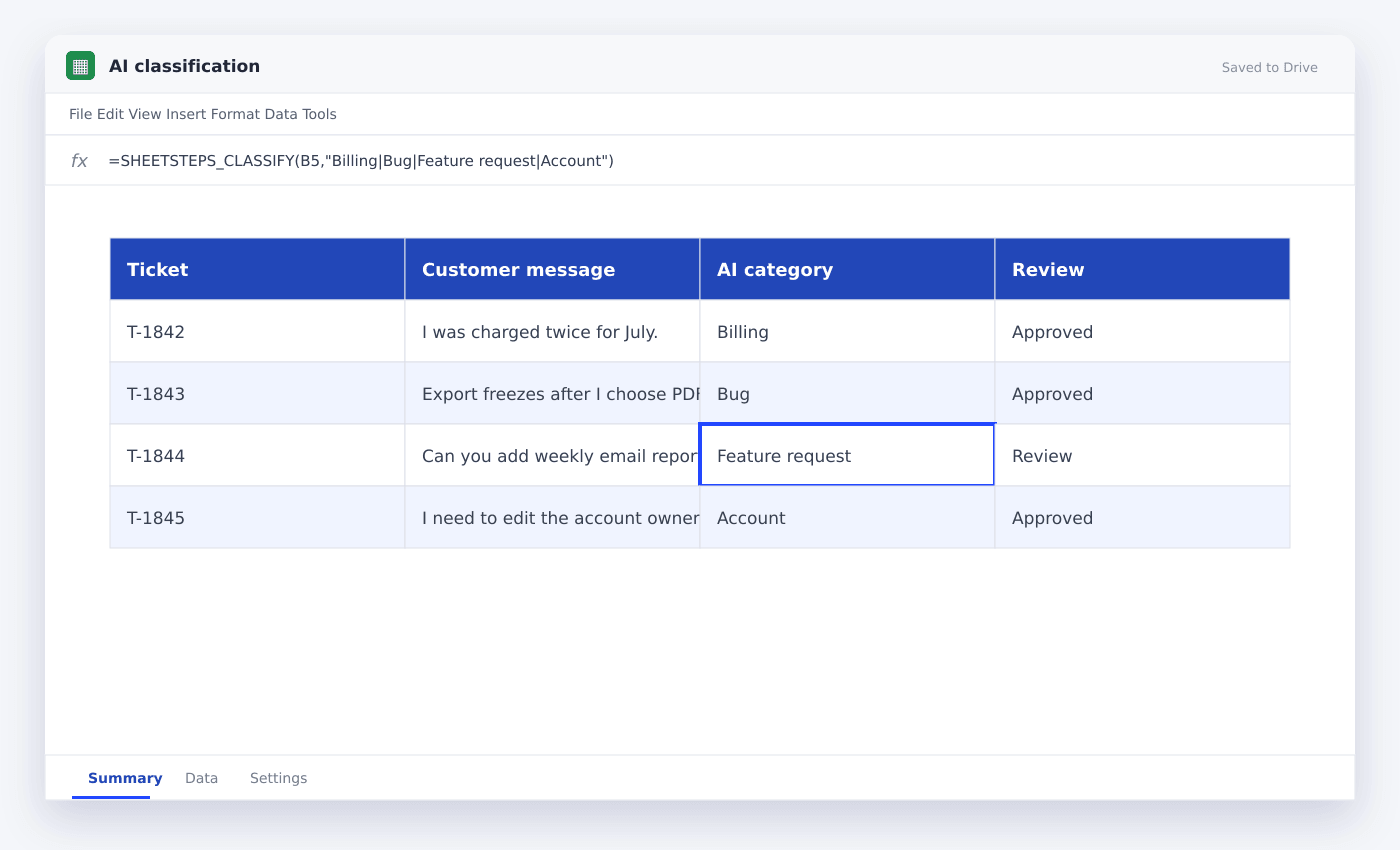
Use AI for fuzzy text work—classification, extraction, summarization and generation—not arithmetic that a normal formula can calculate exactly. Test on a small sample, constrain the output format and cache completed results before running hundreds of rows.
AI is most useful in a spreadsheet when every row contains unstructured text and the desired output has a repeatable layout. It can turn customer messages into categories, product text into attributes or comments into concise summaries.
It is less useful for totals, dates and exact lookups. Normal formulas are cheaper, faster and deterministic for those tasks.
How to use AI in Google Sheets for real work
- 01Define one row-level job
Write the input column and the exact output column before writing a prompt.
- 02Choose a small sample
Test on 10–20 varied rows, including blanks and difficult cases.
- 03Constrain the response
Request a label from an allowed list, one sentence, or a strict JSON layout.
- 04Reference cells clearly
Pass only the columns the model needs rather than an entire sheet.
- 05Review edge cases
Compare outputs against a human-labelled sample and revise the prompt.
- 06Run in batches
Use sensible limits, retries and caching so a refresh does not repeat every request.
- 07Keep source and output
Never overwrite the original text; place AI results in a new column with a status.
Good AI spreadsheet jobs
Classification works well when the allowed categories are clear. Extraction works when the text contains a field for example company, sentiment, model number or delivery date. Summarization works when the maximum length and audience are stated.
Generation can draft product descriptions, outreach lines or meta descriptions, but outputs still need constraints and review.
- Classify handle tickets
- Extract attributes from product descriptions
- Summarize interview comments
- Translate or normalize text
- Draft descriptions from organized fields
Write prompts like a data contract
Tell the model its task, provide the row data, define allowed outputs and state what to do when information is missing. Avoid conversational filler.
For categories, require exactly one label from a list. For extracted data, define the field names and use null for missing entries.
Control cost and reliability
Do not attach entire workbooks to every request. Send the smallest useful context and select a lower-cost model for simple classification.
Cache results by input and prompt version. Add a Run status column so failed rows can retry without reprocessing successful rows.
Questions people ask
Can ChatGPT work inside Google Sheets?+
Yes, through add-ons, Apps Script or external APIs. A good integration manages credentials, batching, retries and writeback rather than calling a model blindly from every recalculation.
What should AI not do in Sheets?+
Avoid using AI for exact arithmetic, high-stakes compliance decisions or tasks where the output cannot be reviewed.
Can I bring my own API credential?+
SheetSteps AI is designed to handle managed usage and provider connections, depending on the workspace plan.
More from SheetSteps

How to scrape a website into Google Sheets
12 min · Web Scraping

Google Sheets formula not working? Check these seven things
10 min · Formulas

How to use IMPORTRANGE in Google Sheets
9 min · AI & automation