Google Sheets formula not working? Check these seven things
Diagnose parse errors, wrong results, #N/A, #REF! and formulas displayed as text using a repeatable checklist.
 Written by JosephinePublished July 17, 2026Last updated July 27, 202610 min
Start with the exact error: parse errors point to syntax, #REF! points to an invalid reference, #N/A means no match, and the wrong-data-type error usually points to text inside a numeric calculation. If the formula itself is visible, edit the cell from Plain text and re-enter it.
Do not rewrite a long formula at random. Google Sheets errors are clues. The quickest repair is identifying whether the problem is syntax, references, data types, lookup matching or formatting.
Make a copy before testing destructive edits. Then reduce the formula until the smallest working part is clear.
Google Sheets formula not working? Check these seven things
- 01Read the exact error
Click the cell and open the error tooltip. Note the code and message.
- 02Check the first character
A formula must begin with = and the cell cannot be formatted as Plain text.
- 03Match parentheses and quotes
Every opening parenthesis and quotation mark needs a closing partner.
- 04Check separators
Some locales use semicolons instead of commas between arguments.
- 05Inspect references
Look for deleted rows, renamed tabs, moved ranges and relative references that shifted.
- 06Check data types
Numbers stored as text and dates stored as labels can break arithmetic and matching.
- 07Test smaller pieces
Run nested formulas separately and rebuild only after each piece returns the expected entry.
Formula parse error
A parse error means Sheets cannot read the formula’s grammar. Look for a missing parenthesis, curly quotation marks copied from prose, an unquoted text criterion or the wrong argument separator.
Use the formula bar and indent the logic mentally. Fix one syntax issue at a time instead of replacing the whole formula.
#N/A in lookups
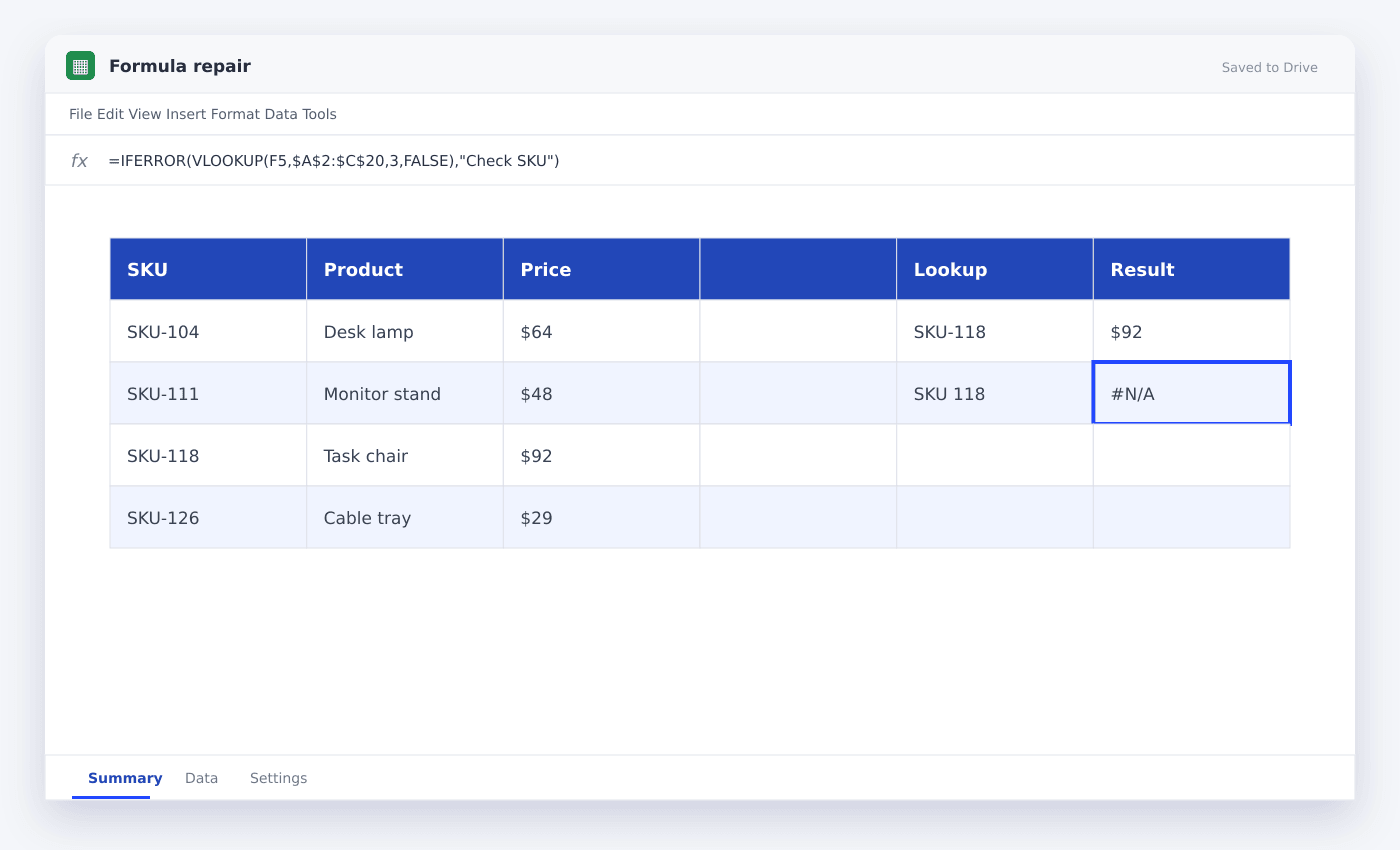
#N/A usually means no matching lookup ID was found. Compare the two entries with =A2=B2 and inspect LEN for extra spaces.
TRIM removes ordinary extra spaces. CLEAN can remove some non-printing characters. Convert imported numeric text before running the lookup.
=IFNA(XLOOKUP(TRIM(E2),A2:A100,C2:C100),"Not found")#REF! and shifting ranges
#REF! appears when a referenced cell, row, column or sheet no longer exists, or when an array cannot expand into occupied cells.
Restore the deleted layout or point the formula to the new range. Lock ranges with dollar signs when they should not move during fill-down.
Questions people ask
Why is my formula showing instead of calculating?+
The cell is probably formatted as Plain text, or Show formulas is enabled. Set the format to Automatic and re-enter the formula.
Why does a copied formula return the wrong row?+
Relative references moved. Lock the rows or columns that should stay fixed using dollar signs.
Can SheetSteps fix a pasted formula?+
Yes. Paste the formula and describe the expected result in the AI Spreadsheet Assistant to get one recommended repair with an explanation.
More from SheetSteps

How to use VLOOKUP in Google Sheets
9 min · Formulas

How to use SUMIF in Google Sheets
8 min · Formulas

How to use IMPORTRANGE in Google Sheets
9 min · AI & automation