How to use IMPORTRANGE in Google Sheets
Pull a reliable range from another spreadsheet, grant access once and combine it with QUERY without creating a fragile chain.
 Written by PhilisPublished July 18, 2026Last updated July 27, 20269 min
Use =IMPORTRANGE(spreadsheet_url, "Sheet name!A1:D100"). The first connection returns #REF! until you click Allow access. Import only the bounded range you need.
IMPORTRANGE lets one spreadsheet read cells from another. It is useful for team reports, consolidated dashboards and separating source data from presentation.
It is not a database sync. Long chains, entire-column imports and dozens of separate formulas can make a workbook slow and difficult to trace.
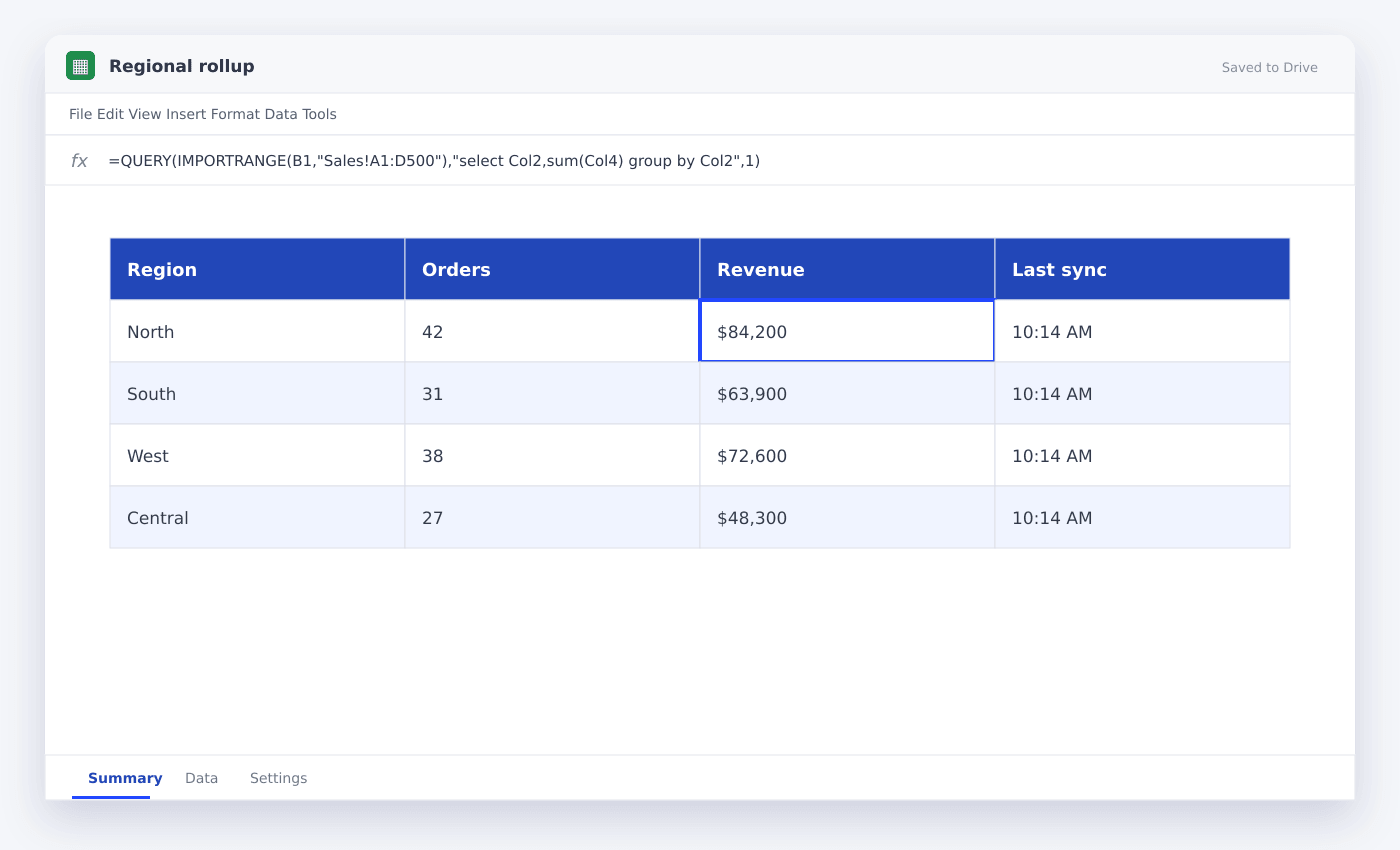
How to use IMPORTRANGE in Google Sheets
- 01Copy the source URL
Open the source spreadsheet and copy its URL or spreadsheet ID.
- 02Choose a bounded range
Write the exact source tab and cells, including quotes around tab names with spaces.
- 03Enter IMPORTRANGE
Put the URL or a cell reference first and the range string second.
- 04Allow access
Click the #REF! cell and approve the connection when prompted.
- 05Check source permissions
The account authorizing the formula must be able to open the source file.
- 06Transform once
Import a clean block, then use QUERY or FILTER around that result rather than repeating many calls.
Write the range string correctly
The range string contains the source tab name, an exclamation mark and the A1 range. Put the whole string in quotes.
If the tab name contains spaces, wrap it in single quotes inside the string.
=IMPORTRANGE(A2,"'Sales Data'!A1:D500")Fix #REF! and permission errors
A new source-destination pair needs permission. Hover over the #REF! result and click Allow access. If the button does not appear, confirm you can open the source while signed into the same Google account.
A renamed or deleted source tab also produces an error. Update the range string to the current tab name.
Keep imported models fast
Avoid A:Z or entire-column imports when the source has many rows. Choose a reasonable bound and extend it deliberately.
If several tabs need the same source, import it once into a staging tab and reference that local range elsewhere.
Questions people ask
Does IMPORTRANGE update automatically?+
Yes, but not instantly. Google refreshes imported entries on its own schedule, and large dependency chains may update slowly.
Can I import only matching rows?+
Yes. Wrap IMPORTRANGE with QUERY or FILTER, but import a stable rectangular range first.
Why is IMPORTRANGE slow?+
Large ranges, many separate formulas and chains where one imported file depends on another are the usual causes.
More from SheetSteps

How to scrape a website into Google Sheets
12 min · Web Scraping

Google Sheets formula not working? Check these seven things
10 min · Formulas

How to use AI in Google Sheets for real work
11 min · AI & automation