Google Sheets invoice template: build one that tracks payment
Create a polished invoice, calculate totals correctly, and keep sent, due and overdue invoices visible in one dependable sheet.
 Written by PhilisPublished July 26, 2026Last updated July 27, 20269 min
A good invoice template separates the client-facing invoice from the invoice register. Use line-item formulas for amount, a SUM for subtotal, and an invoice tracker with issue date, due date, status and balance so unpaid work never disappears.
An invoice is a document, but invoicing is a workflow. A polished printable sheet is useful only if you can also see what was sent, what was paid and what needs a follow-up.
The best setup uses two tabs: one clean invoice that can be exported as a PDF, and one register that holds every invoice. You edit the register every week; you duplicate the invoice tab only when you bill.
Google Sheets invoice template: build one that tracks payment
- 01Add business and client details
Place your name, address and payment instructions away from the editable line-item table.
- 02Create line items
Use description, quantity, rate and amount columns. Keep quantity and rate numeric.
- 03Calculate each amount
Multiply quantity by rate and fill the formula down the reserved line-item rows.
- 04Calculate subtotal and total
Sum the amount column, then add tax or subtract a discount using dedicated input cells.
- 05Add issue and due dates
Use a clear payment term and calculate the due date from the issue date when the term is consistent.
- 06Record the invoice
Add the invoice number, client, total, due date, status and balance to the separate invoice register.
Use formulas that remain easy to audit
The amount on each row should come from quantity multiplied by rate. The subtotal should sum only the amount rows. Tax should reference a visible tax-rate cell rather than hiding the percentage inside a long formula.
That layout makes a mistake easy to trace. If the total looks wrong, you can check the line amount, subtotal and tax separately.
=ROUND(B12*C12,2)Keep a separate invoice register
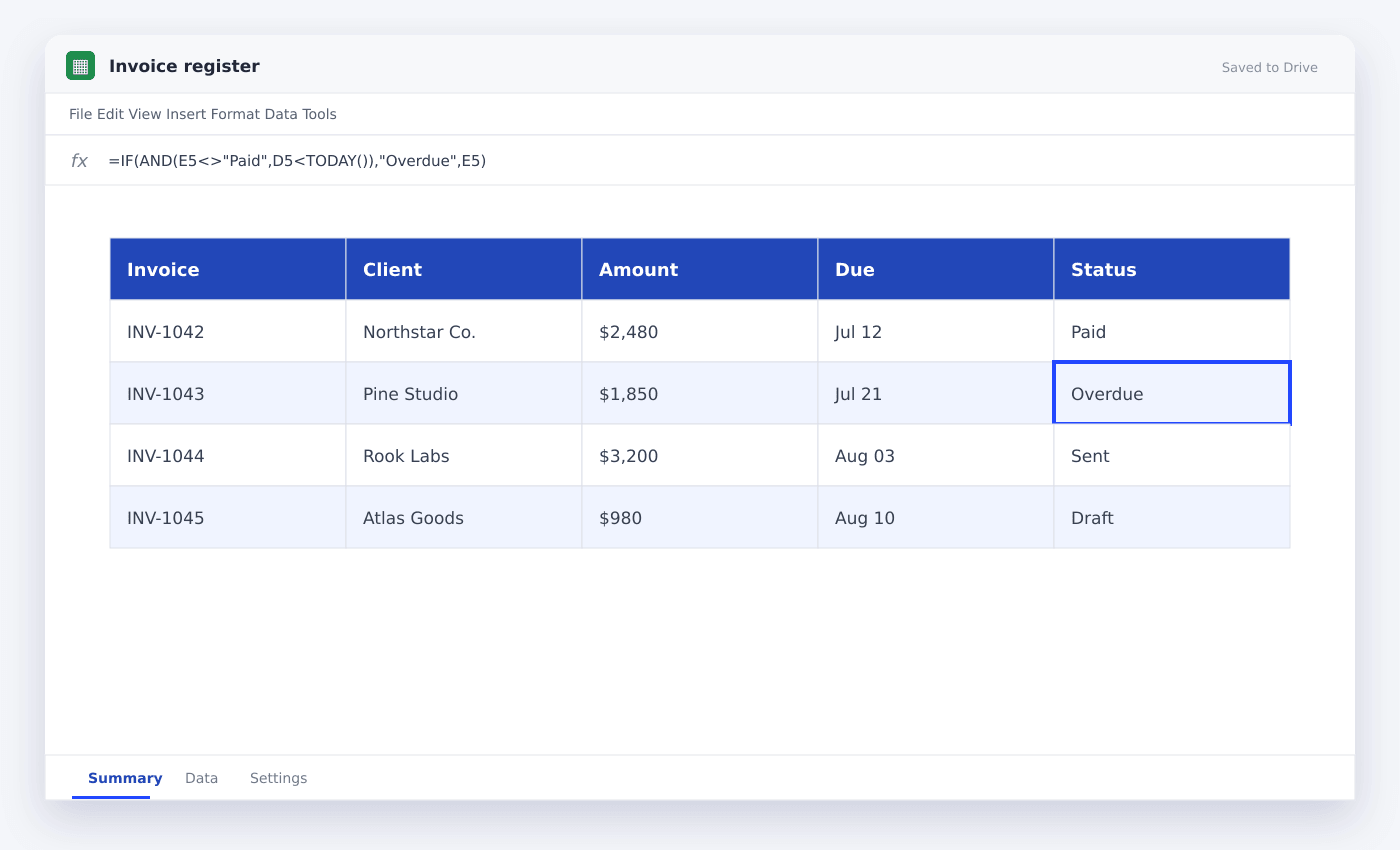
The register is where invoicing becomes operational. Give each invoice one row and use a status dropdown for example Draft, Sent, Paid and Void. Keep the original total separate from the open balance so partial payments are visible.
Use conditional formatting to flag an unpaid row when the due date is earlier than today. That gives you a practical collection queue without changing the invoice itself.
Export a clean PDF
Define a print area that excludes helper cells and unused columns. In print settings, choose selected cells, turn off gridlines and fit the invoice to one page wide.
Before sending, open the exported PDF and check the invoice number, bank details, due date and total. Those four fields cause the most expensive mistakes.
Questions people ask
Can Google Sheets generate invoice numbers?+
Yes, but a manually controlled sequence is safer than relying on row numbers that can edit. Keep the last number in a settings cell and increment it when duplicating an invoice.
How do I mark overdue invoices?+
Use conditional formatting with an AND rule that checks Status is not Paid and Due date is less than TODAY().
Should I keep every invoice in one tab?+
Keep every invoice record in one register, but use a separate printable tab or separate file for the actual client-facing invoice.
More from SheetSteps

Google Sheets budget template: a practical monthly system
10 min · Templates

How to build a Google Sheets dashboard people can read
11 min · Data & charts

How to use SUMIF in Google Sheets
8 min · Formulas