How to hide errors in Google Sheets without hiding broken logic
Use IFNA or IFERROR only after checking why the formula fails.
 Written by JosephinePublished June 12, 2026Last updated July 24, 20268 min
Use IFNA when a missing match is expected and IFERROR when any error should return a fallback. Keep the original formula visible while testing.
Before you replace expected errors with a clear fallback, set up a clean source range and one result you can check by hand. That gives you a known answer before the sheet grows.
This article shows how to replace expected errors with a clear fallback. The sample sheet uses ordinary rows so you can copy the method into an existing file without rebuilding everything.
How to hide errors in Google Sheets without hiding broken logic
- 01Make a safe copy
Duplicate the source tab or file before changing formulas, ranges or formatting.
- 02Set up the source rows
Add the fields needed to replace expected errors with a clear fallback. Keep one record on each row and one field in each column.
- 03Add the method
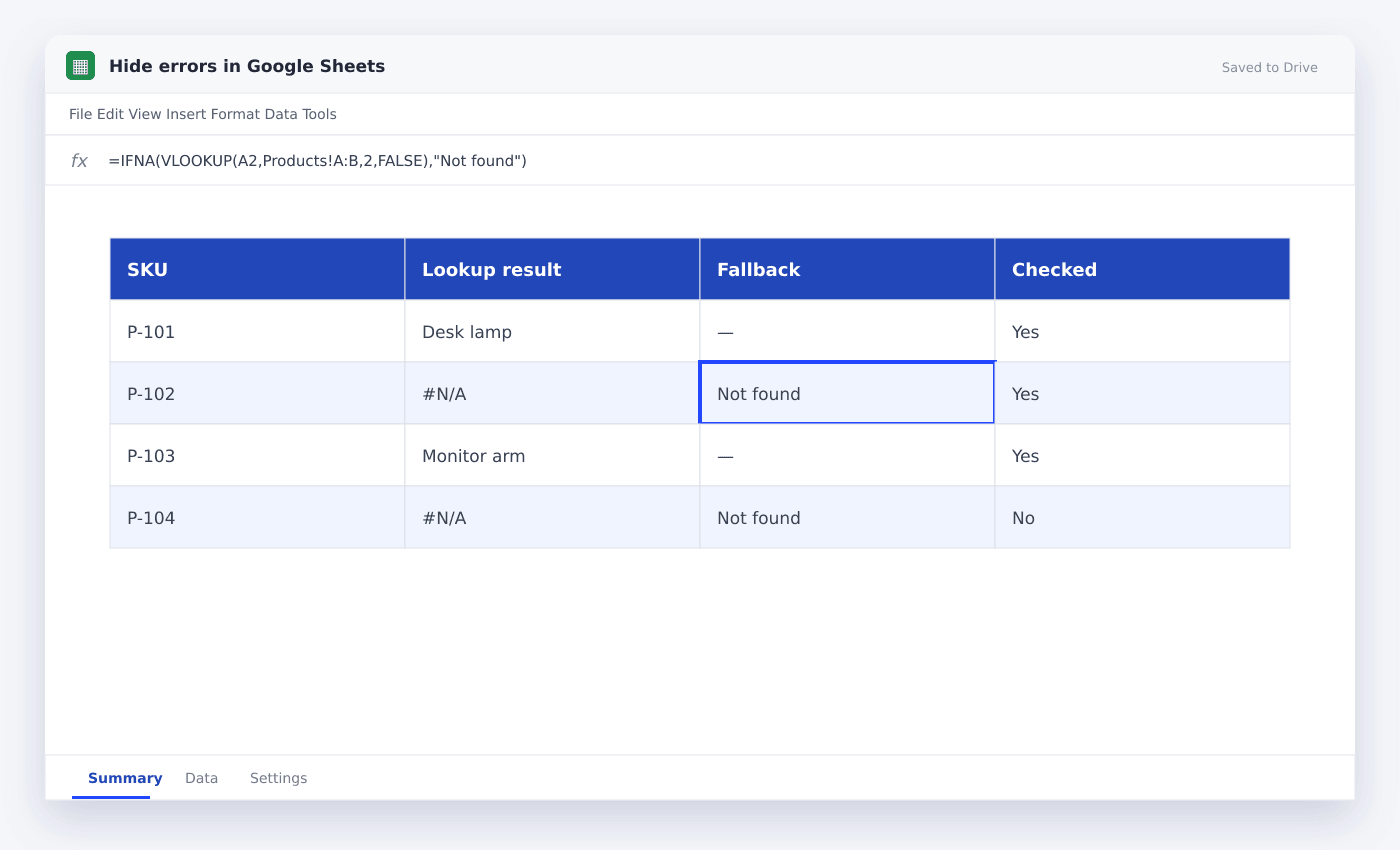
Enter =IFNA(VLOOKUP(A2,Products!A:B,2,FALSE),"Not found") in a test cell and check its first result.
- 04Check a known case
Pick one row whose answer you already know and compare it with the sheet result.
- 05Test the awkward rows
Check blanks, zeros, repeated entries and one row that should not match.
- 06Apply it to the full range
Copy the formula or rule only after the sample cases return the expected result.
Set up the sheet for Hide errors in Google Sheets
Keep the source table rectangular. A single header row, no merged cells and consistent cell types make the work much easier to check.
Place settings, fixed rates or allowed labels on a separate tab. Name them clearly so another person can read the file without tracing every cell.
- Fix unexpected errors first
- Use IFNA for missing matches
- Write a clear fallback
- Do not return blank when action is needed
Check the first result before copying it
A result that looks plausible can still be wrong. Work through one row manually, compare it with the Sheet and check every referenced cell.
Next, test a blank row and an unusual row. These two checks catch many range, type and copied-reference mistakes before they spread.
=IFNA(VLOOKUP(A2,Products!A:B,2,FALSE),"Not found")Keep the file reliable as new rows arrive
Leave input columns visually separate from calculated columns. Protect formulas when several people edit the same file, and keep dropdown lists or settings outside the main table.
Add a short check near the result: row count, unmatched count, last refresh time or a manual spot check. The right check depends on the job, but it should make a bad update easy to notice.
Questions people ask
What is the difference between IFNA and IFERROR?+
IFNA catches only #N/A. IFERROR catches any formula error.
How do I show blank instead of an error?+
Wrap the formula with IFERROR and use an empty string as the fallback.
Is hiding every error a good idea?+
No. It can conceal bad references, wrong data types and broken calculations.
More from SheetSteps
Google Sheets formula not working? Check these seven things
10 min · Formulas

How to use VLOOKUP in Google Sheets
9 min · Formulas

How to use SUMIF in Google Sheets
8 min · Formulas