How to sort in Google Sheets without scrambling rows
Sort a complete dataset by one or several columns while keeping every record intact.
 Written by JosephinePublished July 23, 2026Last updated July 27, 20266 min
Select the complete data range, then use Data → Sort range → Advanced range sorting options. Check “Data has header row,” choose the sort column and direction, and add another sort column only when you need a tie-breaker.
The dangerous way to sort is selecting one column in a multi-column table. The entries move, but the rest of each record stays behind. A customer can suddenly inherit another customer’s amount or status.
Always sort the complete table. If you sort frequently, use a filter or the SORT formula so the source data remains untouched.
How to sort in Google Sheets without scrambling rows
- 01Click inside the dataset
Make sure the range has one header row and no merged cells.
- 02Select the full range
Include all columns that belong to each record.
- 03Open advanced sorting
Choose Data → Sort range → Advanced range sorting options.
- 04Confirm the header
Check Data has header row so labels are not sorted into the records.
- 05Choose direction
A → Z puts text alphabetically and numbers smallest first; Z → A reverses that.
- 06Add a second rule
Sort by Region first and Amount second when records need grouping and ranking.
Sort a range or sort the whole sheet
Sort range edits only the selected rectangle. Sort sheet moves every populated row based on the chosen column. Use Sort range when the sheet contains comments or separate tables.
If the dataset is the only thing on the tab, a sheet sort can be safe, but advanced range sorting is more explicit.
Create a sorted view with a formula
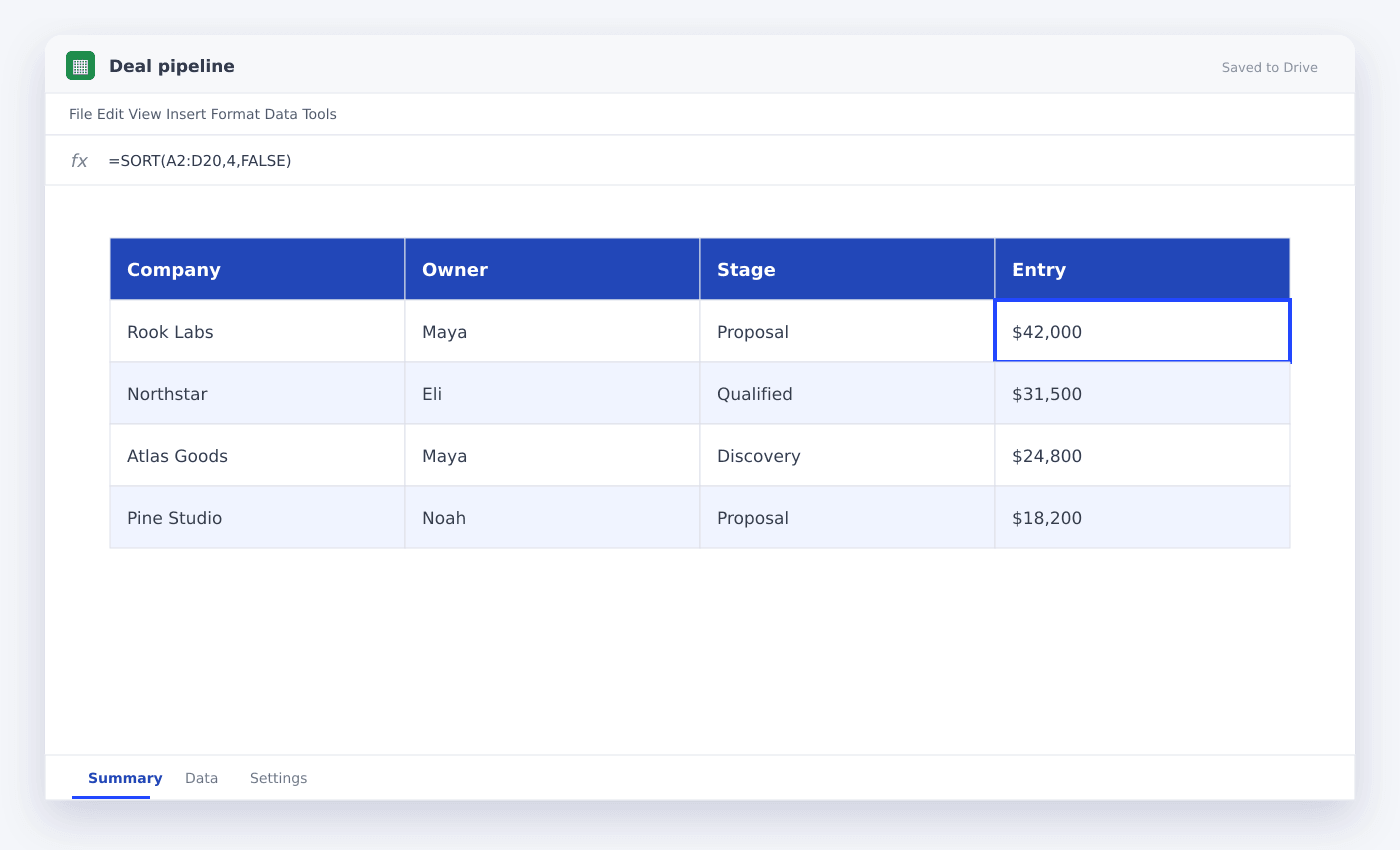
SORT returns a new ordered version while leaving the original data intact. This is useful for dashboards, queues and shared sheets where source order matters.
The sort column can be an index within the returned range or a matching standalone column.
=SORT(A2:E100,4,FALSE)Recover from a one-column sort
Undo immediately with Ctrl+Z or Cmd+Z. Do not keep editing, because later edits make recovery harder.
If the file has already been saved, open File → Version history and restore a version from before the sort.
Questions people ask
How do I sort by date?+
Make sure every entry is a real date, select the whole table and sort the date column A → Z for oldest first or Z → A for newest first.
Can I sort by color?+
Filter menus can sort or filter by fill and text color. This works best when colors come from a consistent rule.
Why is 100 before 20?+
The entries are stored as text. Convert the column to numbers before sorting.
More from SheetSteps

How to create a table in Google Sheets
7 min · Getting started

How to wrap text in Google Sheets
5 min · Getting started

How to make a graph in Google Sheets
8 min · Data & charts